Score Sheet


3. The third place to check your performance is in the Individual Score Sheet.
Click on Scores to see your personal performance:
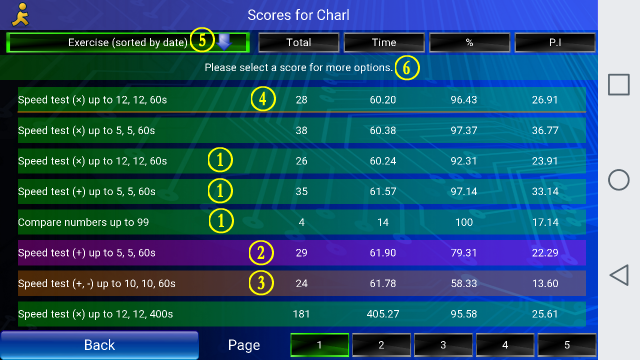
This screen contains a lot of detail and the information on this screen is used mostly by Parents and Teachers to judge the performance of the Student.
In a maths practising system like the CAMI-Apps Speed test, 80% is the minimum passing percentage.
B. All the scoring lines that are coloured with a green background will have scores above 80%.
C. As soon as a score drops to the 60%-80% level, the background colour of the line will be blue. See the 6th line from the top in the image above. It alerts the Parent or the Teacher that the Student may face a possible maths problem, and he needs more practising in that exercise.
D. Once the score drops below 60%, the line is coloured red to indicate that a real problem exist and that intervention would be strongly recommended. A significant amount of practising would be needed to raise the score to a level higher than the minimum acceptable level of 80%. See line 7 above for an example of this fact.
E. In addition the top green line also shows a thin red line below it.
This indicate that the exercise has been completed, the score has been written up to the Device (the Tablet or the Phone) but it has not yet been loaded up to the Server.
The most common explanation is that the Device is currently off-line, and thus the red-underlined score will not be seen in the Activity sheet or in the Hall of Fame.
Once internet connectivity is restored, the red-underlined scores will be uploaded to the Server.
F. Please note that the Green button on top left indicates that the scores are sorted by Date, in Descending order, with the latest score on top of the list.
If you click on the same button again, the scores will be sorted in Date order, but this time Ascending and the oldest score will be on top of the list.
G. You will note the additional text instruction that you can "Please select a score for more options".
If you click on any score, the line will be highlighted with a lighter green colour (A), and the full details will be seen on the top line (B):
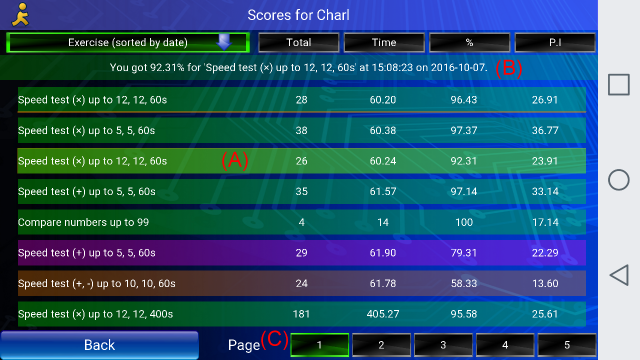
At the bottom of the page (C), you will note that more Pages with information is available. Click on 1, 2, 3, etc. to see the information on the other pages.
Lastly, note that the 5 buttons at the top of the page are all Sort buttons:
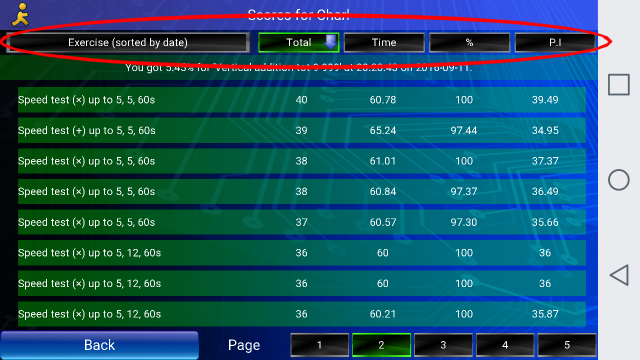
The first click on (say) the Total button will sort the data in Totals, in Ascending order.
The next click on the same Total button will sort the data in Descending order.
The same behaviour can be seen from the buttons for Time, Percentage and PI.