Register the first User


Once you have downloaded the CAMI-Apps system, you will see the opening screen:
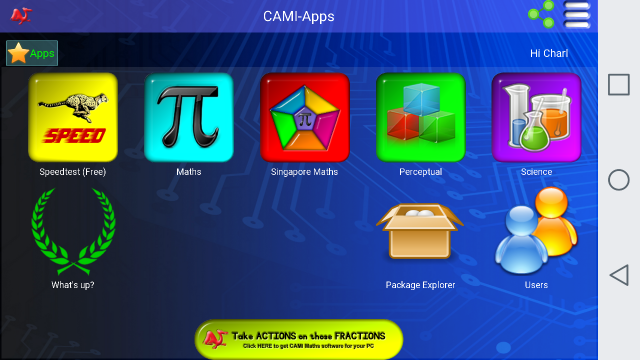
To experience the full value of all the features in the system, it is necessary to Register your user details.
You will be reminded of the necessity via this screen:
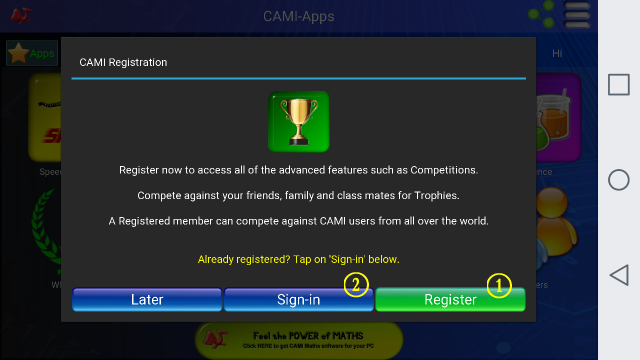
B. Registering your details with CAMI-Apps will provide you with many benefits:
You will be able to see your name in the Global Score sheet and compare your scores with other users.
Typically, a parent will register himself as the first user on a Device used at home - either a Tablet or his personal SmartPhone.
Many schools use the CAMI software at school and the child will have an unique log-in name, that will allow him to work at school or at home.
As a parent, you will be able to follow the progress of your child on a daily basis, whether he has worked at school or at home.
C. If your child comes home from school with a pre-registered username and password, you may add him as a second user on your device at home, by clicking on the Sign-In button.
You may postpone registering if you wish to explore the CAMI-Apps system by clicking on the "Later" button.
The Registration screen:
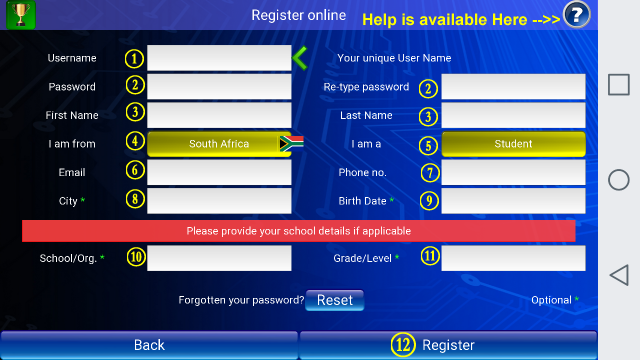
Note that Help is available by clicking the Question Mark in the Top Right-hand corner.
B. Select and type in a Username. Once the Register button is pressed, the server will check the username to see if it is still available.
C. Select a Password and re-type the password on the right side of the screen.
D. Enter your Name and Surname into the First Name and Last Name fields.
E. Select your Country from the Drop-down list.
F. Select the Role that you play in Education.
The three essential choices are either a Parent or a Student or a Teacher:
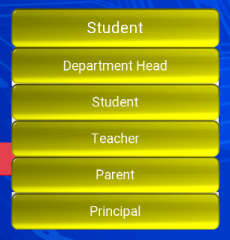
At schools, the Principals and the Heads of Department get other privileges.
G. Please provide a valid Email address where we can send vital communication to, such as Password re-sets, etc.
Children that do not have their own email addresses may use the email addresses of their parents. As long as we can communicate vital information to the user, it will be perfect.
H. A Phone number is required for communication of vital information, mainly via sms text messages.
I. It is envisaged that competitions may be run in Cities in the near future. Please provide a name of your City to help in identifying the users from a particular city.
J. Birth Date will be used for competitions, where we do not wish for an 8-year old child to compete against 13 year old children, for example.
Clicking in the Birth Date field will bring up a selection box:
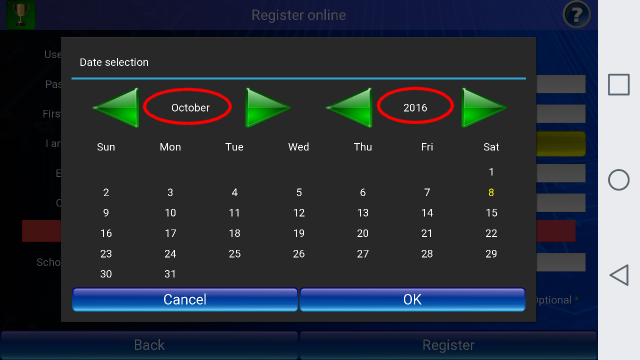
You can click on the Month of October to get a drop down list, or you may use the green arrows left and right to scroll to other months.
You can click on the Year: 2016 to get a drop down list of years, or you may use the green arrows left and right to scroll to other years.
You then tap on the Day from 1 to 31 for date selection.
Click on OK once the Birth Date has been selected.
K. Insert the name of the School with which you are associated.
If you are a parent, you may skip this field.
School going Students and Teachers will fill in their school name here.
L. Grade/Level: This field is for Students and Teachers.
Students - The Year or Grade or Level that they are currently in.
Teachers - the Year or Grade or Level that they currently teach.
M. Once completed, click on "Register", and the various fields will be checked for validity.